

IdP Group Sync Enterprise Grid
Availability
Group syncing is currently available on the self-hosted Commercial and Airgapped Editions.
IdP Group Sync lets workspace admins map identity provider groups to access in Plane. When a user signs in through SSO, Plane reads the groups on their identity and automatically grants the matching access, then keeps it in sync as their group membership changes in your IdP.
You can map groups to three things:
- Workspace roles - the role a user gets in the workspace.
- Project access - membership and role in specific projects, or in all projects.
- Private collection access - view, comment, or edit access to private wiki collections.
This removes manual onboarding and offboarding: access follows group membership in your identity provider.
Supported providers
Group sync works with all three SSO methods. One provider is active per workspace at a time.
| Provider | Sync on login | Scheduled offline sync |
|---|---|---|
| OIDC | Yes | Yes |
| SAML | Yes | No |
| LDAP | Yes | Yes |
SAML groups are only present in the login assertion, so SAML syncs at login only. It does not support the scheduled offline sync. OIDC and LDAP can fetch groups from the provider on a schedule as well as at login.
Prerequisites
- SSO configured and working with OIDC, SAML, or LDAP.
- Your identity provider configured to send groups (as a claim for OIDC, an assertion attribute for SAML, or an attribute for LDAP).
Turn on group syncing
- Navigate to Workspace Settings → Group syncing.
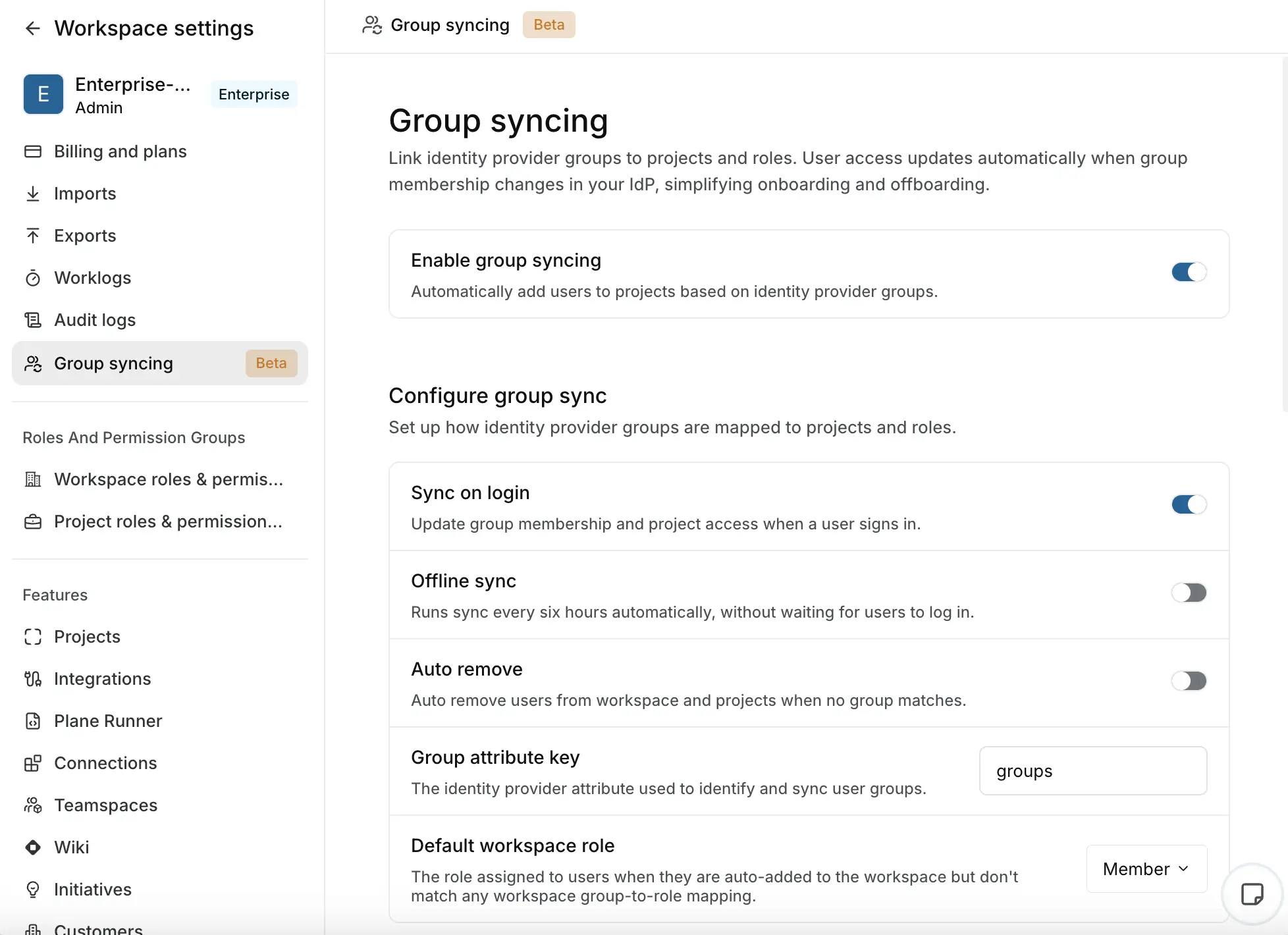
- Toggle on Enable group syncing.
Configure sync settings
Under Configure group sync, set how syncing behaves.
| Setting | Description | Default |
|---|---|---|
| Sync on login | Update the user's group membership and access when they sign in | Enabled |
| Offline sync | Run a sync every six hours automatically, without waiting for users to log in (OIDC and LDAP only) | Disabled |
| Auto remove | Remove users from the workspace and projects when no group matches | Disabled |
| Group attribute key | The identity provider attribute that carries the user's groups | groups |
| Default workspace role | The role assigned to users who are auto-added to the workspace but don't match any workspace role mapping | - |
Set Group attribute key to match exactly what your IdP sends. Common values are groups (default), roles, memberOf, or custom:groups.
Add group mappings
Group syncing has three kinds of mapping, each in its own section on the page. Each mapping starts from an IdP group name and grants access when a user is in that group. A user in several matching groups always receives the highest role or access across them.
Workspace role mapping
Maps a group to a workspace role.
- Under Workspace role mapping, click Add group sync.
- Enter the User group name exactly as it appears in your IdP.
- Select the Workspace role.
- Click Add.
If a user is auto-added to the workspace but matches no workspace role mapping, they get the Default workspace role from the settings above.
Project role mapping
Maps a group to one or more projects with a project role.
- Under Project role mapping, click Add group sync.
- Enter the User group name.
- Choose the target:
- Select a Project, or
- Turn on Apply to all projects to map the group to every project in the workspace, including projects created later.
- Choose the Project role: Admin, Member, or Guest.
- Click Add.
Private collection access mapping
Maps a group to a private wiki collection with an access level. Collections group your workspace's wiki pages; only private collections have membership, so only private collections can be mapped.
- Under Private collection access mapping, click Add group sync.
- Enter the User group name.
- Select the Private collection.
- Choose the Collection access: View, Comment, or Edit.
- Click Add.
What happens on sync
When a user signs in (or during an offline sync), Plane resolves their groups and applies access in order: workspace role first, then project access, then private collection access.
| Situation | Result |
|---|---|
| User is not in the workspace but matches a mapped group | Added to the workspace with the matching workspace role, or the default workspace role, then granted the mapped project and collection access |
| User is in the workspace and matches a project or collection mapping | Granted or updated to the mapped access |
| User matches several groups mapping to the same target | Receives the highest role or access across the matches |
| User is in the workspace but matches no mapping | No access is added. With Auto remove on, synced access is revoked (see below) |
When users leave groups
Removal only happens when Auto remove is enabled. When a user no longer matches a mapping, Plane revokes the access that group sync granted, in this order: private collections, projects, and finally the workspace.
Group sync only ever touches access it granted itself. The following are never changed or removed by syncing:
- Manually granted access. Workspace roles, project memberships, and collection access that an admin assigned by hand are never modified or removed. Only access added by group sync is subject to auto-remove.
- The last admin. A user is never removed if they are the last admin of the workspace or of a project.
Manual roles are also never downgraded by syncing. If someone was manually made a project Admin, a group mapping for a lower role will not lower them.
Sync behavior and safeguards
- A user in multiple groups mapped to the same project, workspace, or collection gets the highest role or access among them.
- Manually assigned roles and memberships are never overridden, downgraded, or auto-removed.
- The last admin of a workspace or project is protected from removal.
- A workspace guest cannot be granted a project Admin role through a mapping, even if a group maps to Admin.
- Adding a paid workspace role through sync respects your seat limits.
- Sync errors never block sign-in. If syncing fails, the user still logs in and the error is logged.
Common use cases
New hire provisioning. Map your engineering group to a Member role on all engineering projects (or use Apply to all projects). New engineers get access on their first sign-in with no admin action.
Department scoping. Map product-team, design-team, and marketing-team to their respective projects so people only see what is relevant to them.
Workspace role assignment. Map leadership to a higher workspace role and set a conservative Default workspace role, so most synced users land as Members while leads are elevated automatically.
Wiki access control. Map security-team to a private "Security runbooks" collection with Edit access, and all-staff to the same collection with View, so the right people can read and the right people can maintain it.
Contractor offboarding. Map contractors to projects with the Guest role and enable Auto remove. Access is revoked the moment they are removed from the IdP group.